
Create a Meta WhatsApp Account
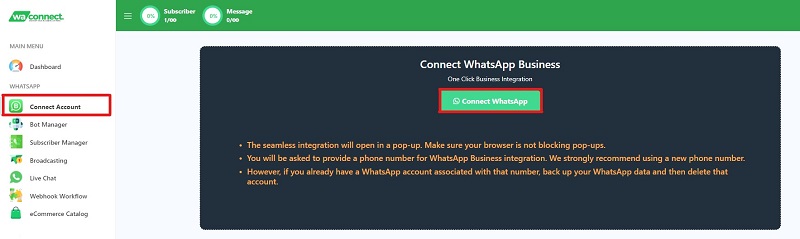
- After signing up with WA Connect you can create your Meta WhatsApp Account. Select Connect Account and then the Connect WhatsApp button to start the process
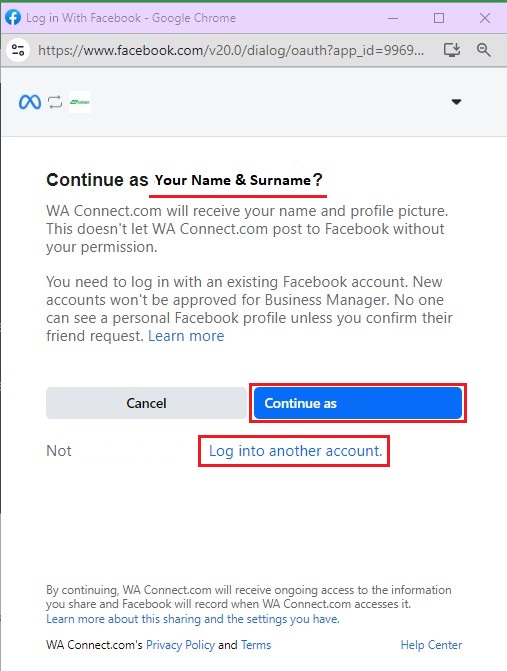
- Once you select Connect WhatsApp you can choose to continue with your existing account or log in using another Facebook account.
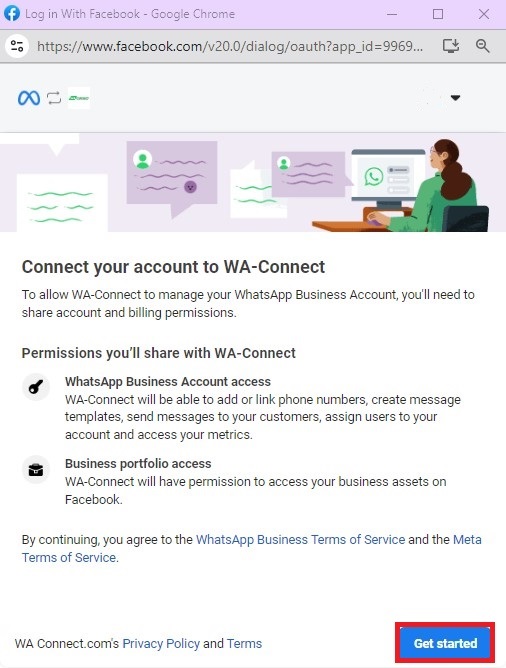
- This directs you to a page that requires you to grant permission to allow WA Connect to manage your WhatsApp Business Account, as well as access to share account and billing permissions. By clicking on, Get Started, you agree to the WhatsApp Business Terms of Service and the Meta Terms of Service.
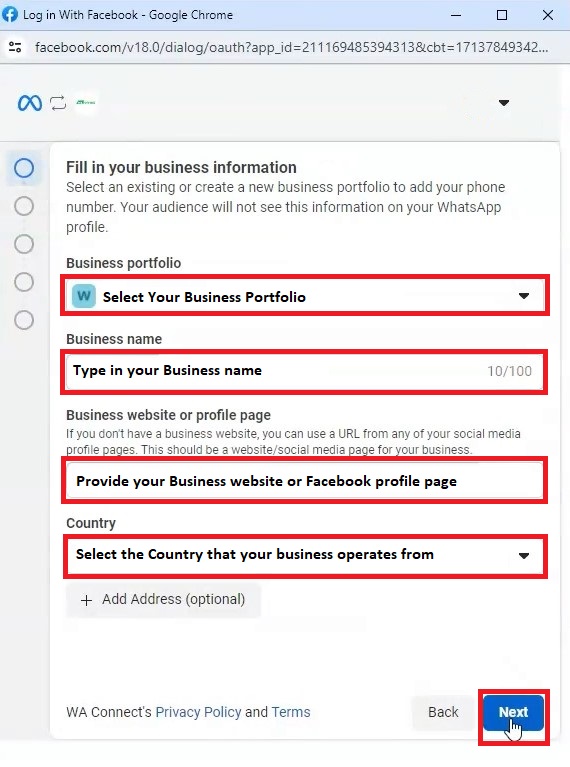
- Select your Business Portfolio account, type in your Business name and provide your Business website or Facebook profile page, and select the Country that your business operates from, select Next.
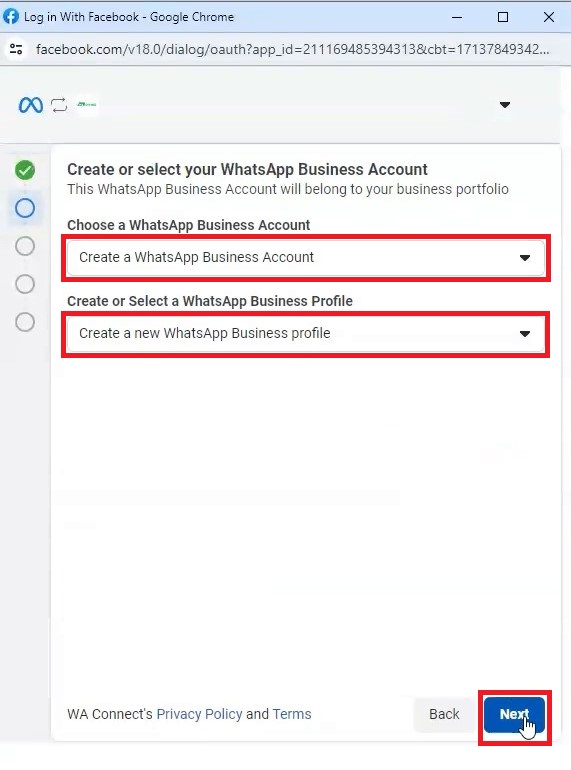
- Create a new or select an existing WhatsApp Business Account as well as select or create a new or existing WhatsApp Business Profile select the Next button.
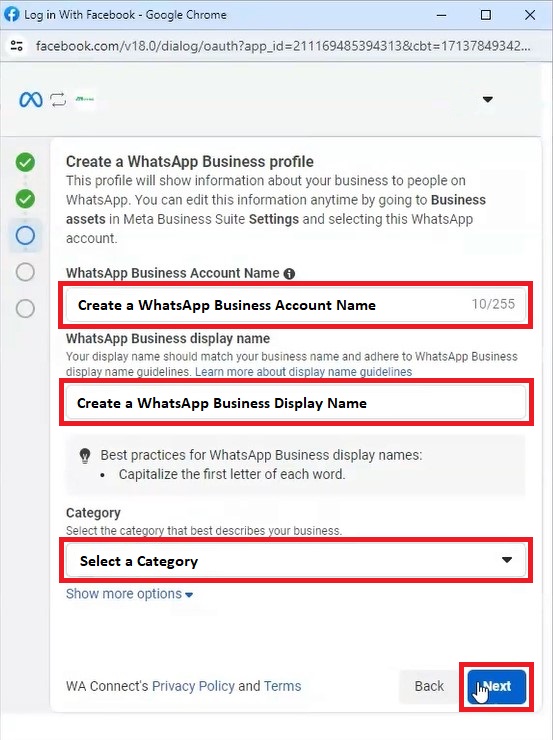
- Create a WhatsApp Business Account Name (255 characters), a WhatsApp Business Display Name that should match your business name and select a Category that best describes your business.
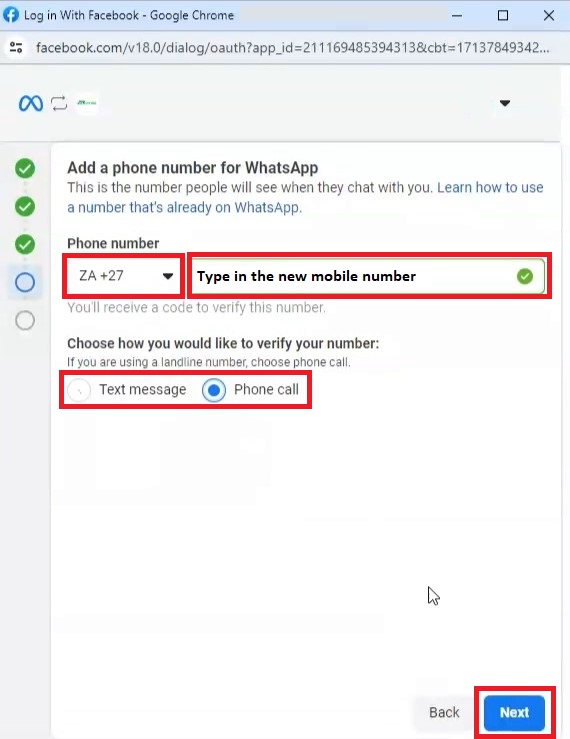
- You will be required to add a new mobile number that will be used for WhatsApp. (IMPORTANT – this must be a new number that has not been registered with WhatsApp before.)
- Select your Country code type in the new mobile number and then choose to verify the number by selecting either text message or phone call to receive your 6-digit verification code. Click the Next button
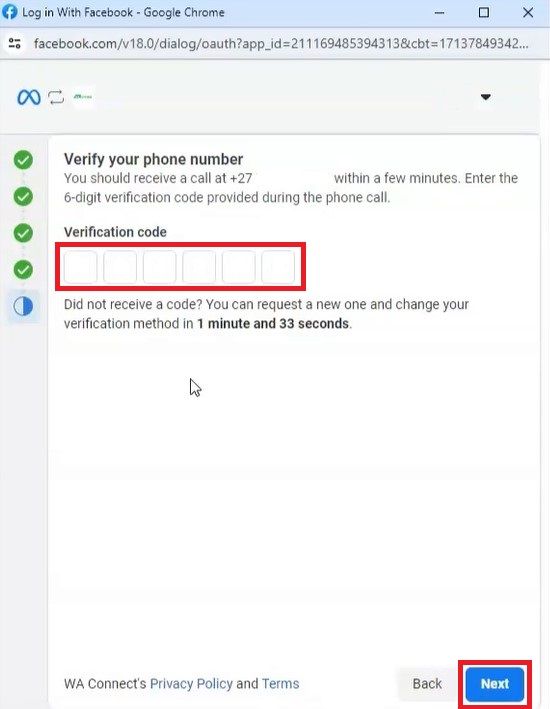
- Enter a verification code received by either text message or phone call, depending on the method selected in the previous step. Enter the verification code and select the Next button.
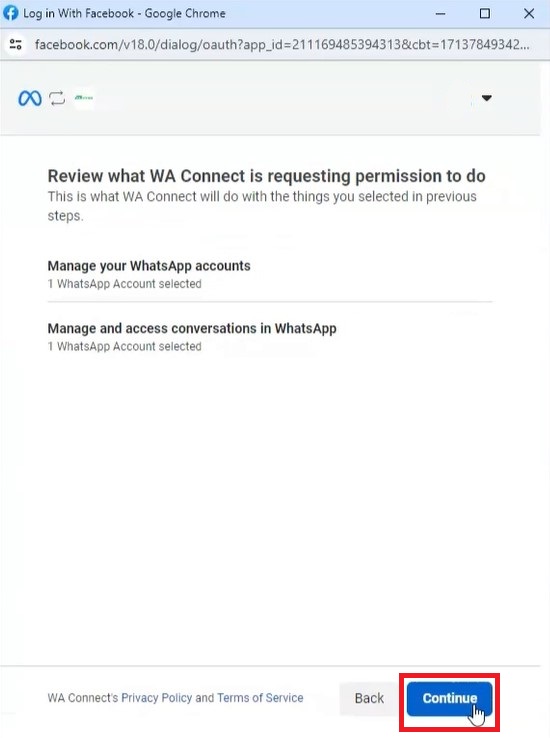
- Agree to give WA Connect access to Manage your WhatsApp accounts and Manage and access conversations in WhatsApp. To confirm the permission granted you need to select the Continue button.
- Your WhatsApp account will be created and you will receive confirmation that you are ready to start sending WhatsApp Messages. Select the Finish button to complete the process.

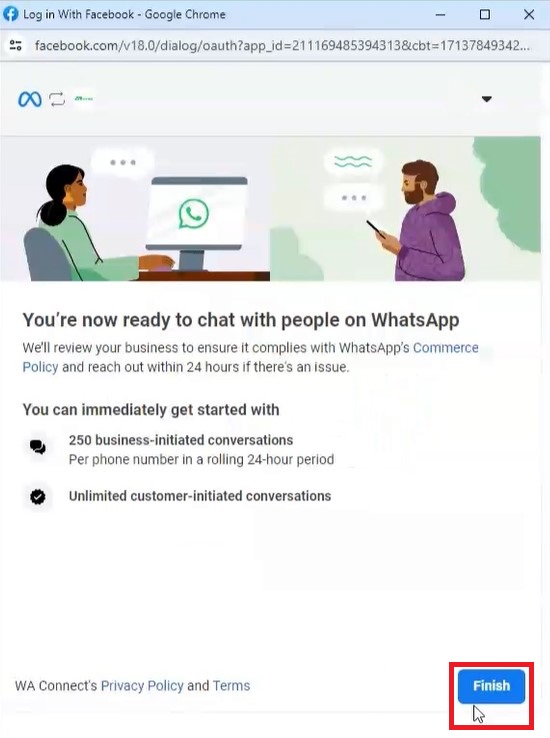
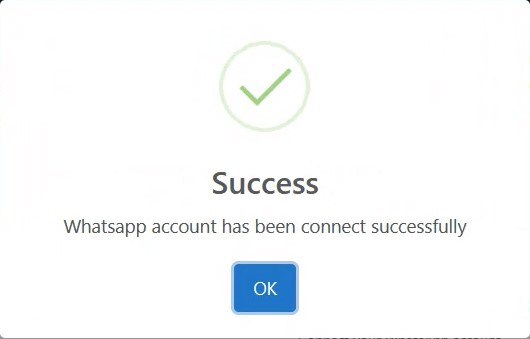
- Your Meta WhatsApp Account is successfully created when you receive the pop up message below.