
WhatsApp Broadcasting
WhatsApp Broadcasting is an essential tool for sending messages, media, and updates to numerous WhatsApp contacts simultaneously. This feature is particularly beneficial for businesses, organizations, and individuals aiming to communicate with a large audience efficiently.
By utilizing WhatsApp Broadcasting, you can launch a campaign targeting a specific segment of your contacts using labels. This ensures that your messages reach particular groups or your entire subscriber list. Broadcasts can include various types of content such as text, images, videos, documents, and links. This feature is ideal for delivering announcements, promotions, newsletters, event invitations, and other critical updates, allowing you to keep your audience engaged and well-informed.
Steps to Launch a WhatsApp Broadcast Campaign:
- Navigate to the Broadcasting section from your dashboard.

- On the WhatsApp Broadcasting page, click the Create button to start a new broadcast campaign. Ensure to select the appropriate WhatsApp bot account from the dropdown list if you have multiple accounts.
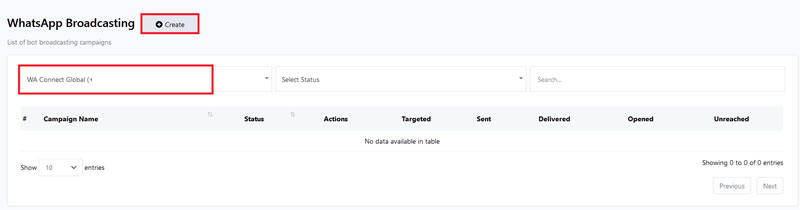
- A new window will open to create the broadcast flow using the built-in chatbot.
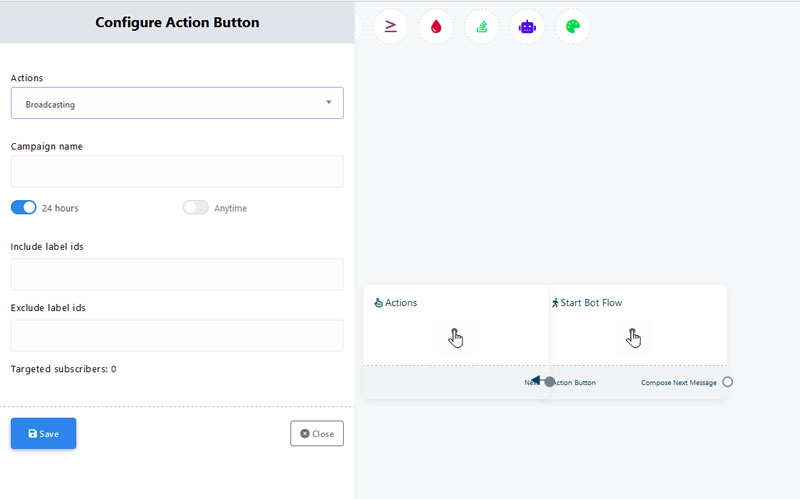
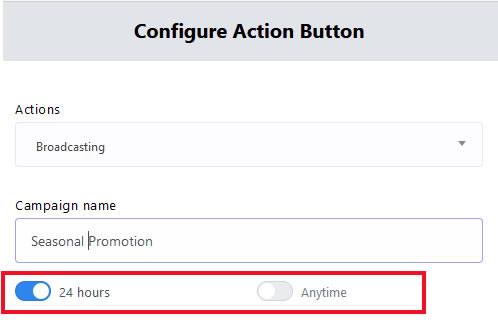
- As we are creating a new broadcast message, Broadcasting is already selected by default under Actions.
- Assign a unique name to your campaign.
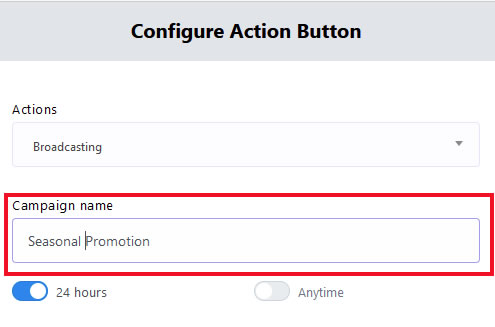
- When choosing Campaign Type, you have two options: 24 hours and Anytime.
- 24 Hours: This option targets subscribers who have interacted with the bot within the past 24 hours, allowing any type of message.
- Anytime: This option targets all subscribers using an approved Message Template. Click Here for Instructions on creating these templates.
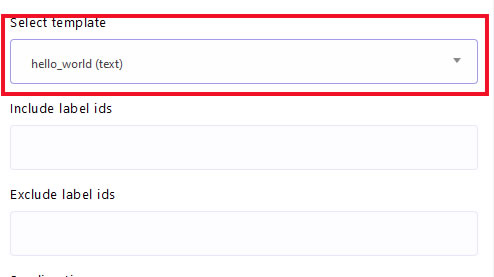
- Select the message template you would like to send.
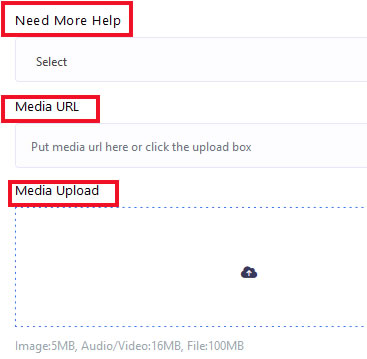
- Depending on the type of template selected there might be additional fields that are required to be completed to update the broadcast.
- For example, if an image, video or document template is selected, you will be required to upload the media file to be included in the broadcast.
- Use Include label IDs to specify which subscribers to target.
- Use Exclude label IDs to exclude certain subscriber segments.

- Define the sending time. You can schedule the broadcast by choosing a preferred time and time zone or leave this option unselected to send the broadcast immediately.

- Click on Save to save the settings for the broadcast.
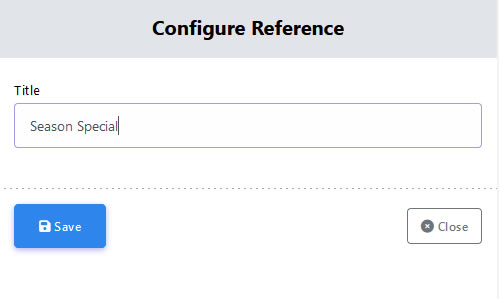
- Double-click Start Bot Flow, assign it a name and click Save.
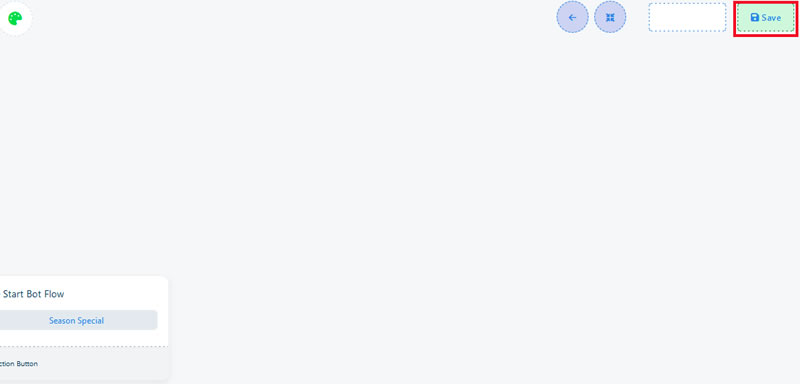
- In the top right corner of the bot flow builder, click the save button. Your campaign will be initiated immediately after saving.
- For 24-hour campaigns, add a message to the bot flow: text, multimedia, interactive, or e-commerce content.
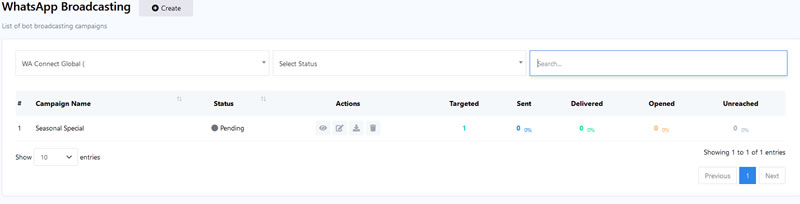
- Monitor the progress of your broadcast campaign on the WhatsApp Broadcast page, ensuring that your communication reaches the intended audience effectively.