
WhatsApp E-Commerce Catalog
The WhatsApp Ecommerce catalog is a robust feature that empowers businesses to showcase and manage their products or services directly within the WhatsApp messaging platform. This tool serves as a virtual storefront, allowing businesses to create a catalog of their offerings, complete with product descriptions, images, pricing, and direct links for easy purchase.
Connect the Catalog to WhatsApp
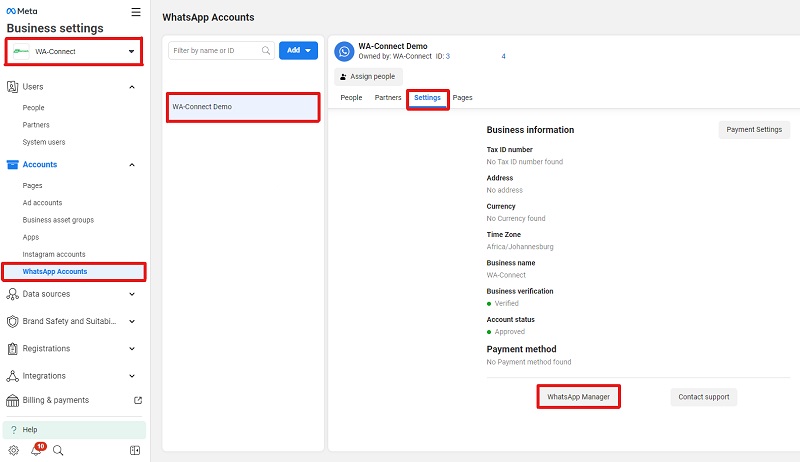
- From Facebook Business Manager the Business Portfolio.
- Select WhatsApp Accounts.
- Select the WhatsApp Account.
- Select Settings and WhatsApp Manager.
- Under Account Tool.
- Click on catalog.
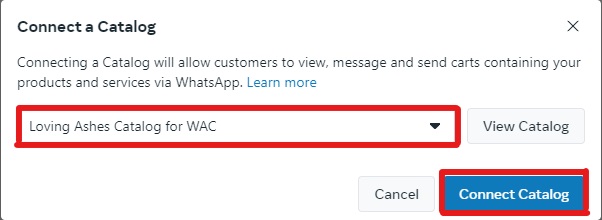
- Click on the Choose catalog button.
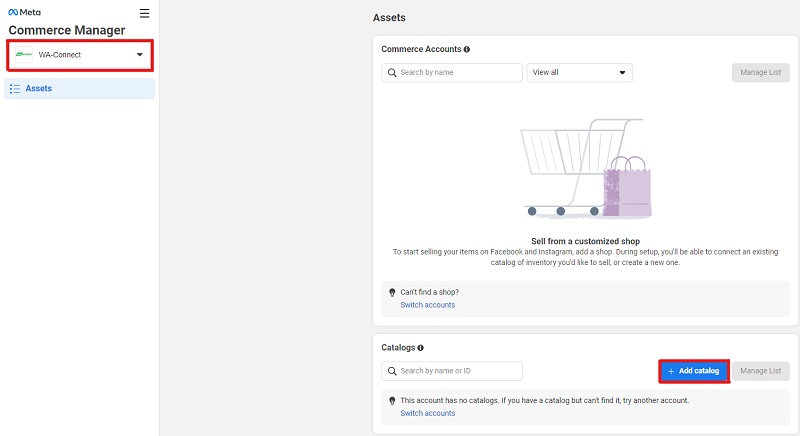
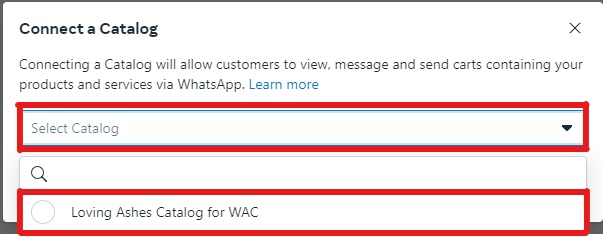
- Select the catalog.
- Click on the Connect catalog button.
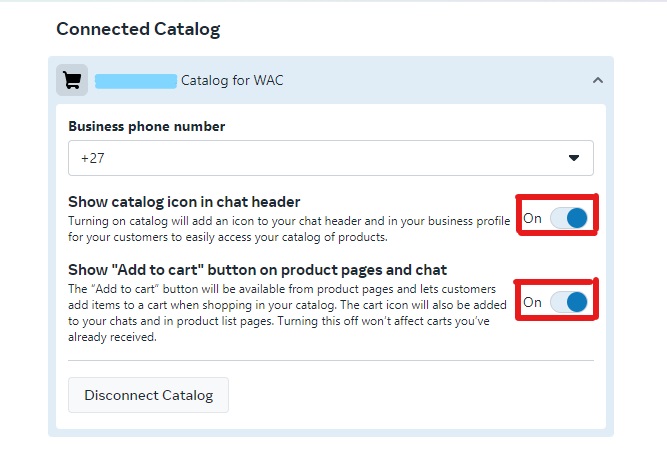
- After the catalog has connected, enable the show catalog icon in chat header and the Show “Add to cart” button on product pages and chat buttons.
Use the Catalog on WhatsApp
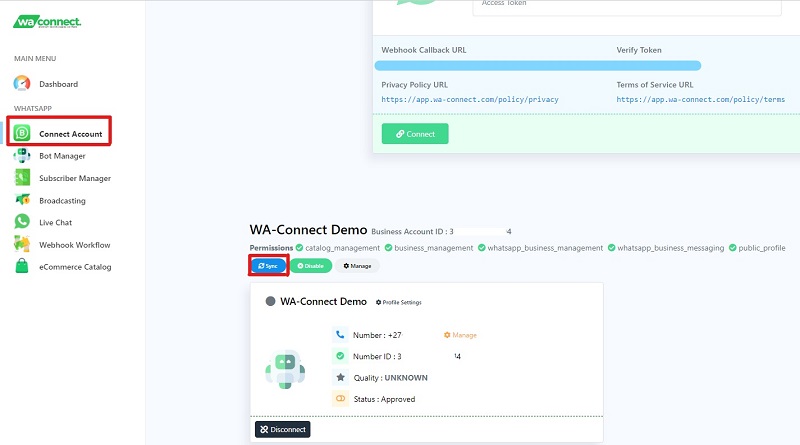
- Go to Connect Account.
- Choose the WhatsApp account.
- Click on the Synchronize button.
Configure Catalog Settings
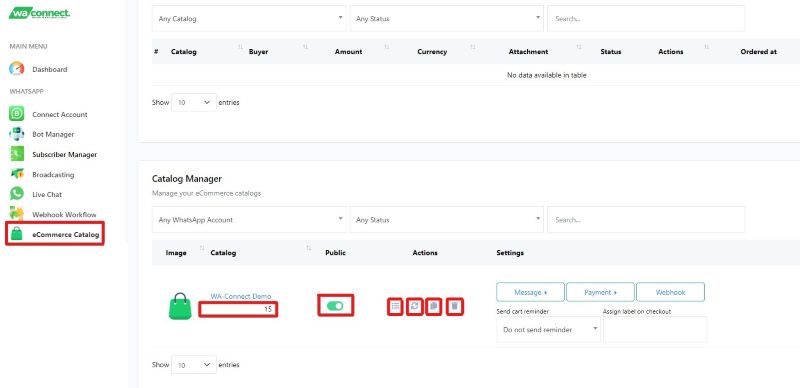
- Go to the eCommerce catalog. You’ll find the catalog name and ID.
- There’s an option to enable or disable the public status.
- Under Actions:
1) You can view catalog products. Synchronize any added or updated products. Select products and click Sync Product button.
2) You can also synchronize the full catalog.
3) You can copy the catalog URL to share with your users.
4) You can remove the catalog by clicking the delete button.

Configure Catalog Message Templates and Settings
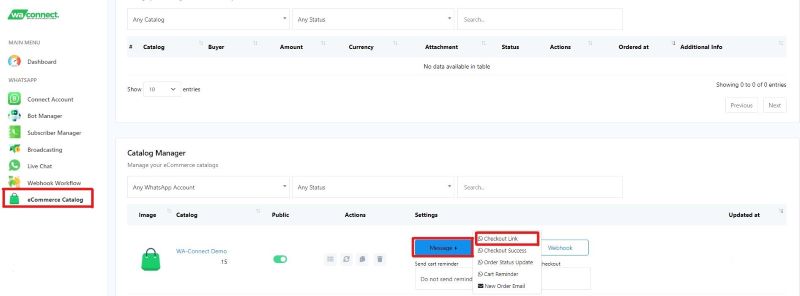
- Scroll down to Catalog Manager.
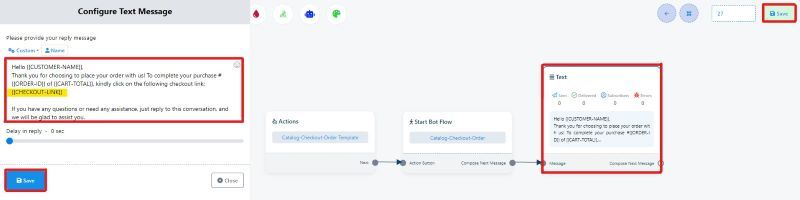
- Click on the message button to edit the Checkout Link and Reminder. You can rewrite the message but don’t change the Checkout URL.
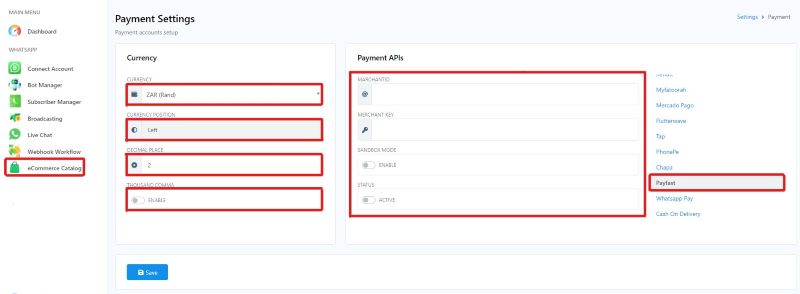
- Add the payment method in Payment Settings (multiple options available).

- Configure cart settings, including tax percentage and shipping charges.


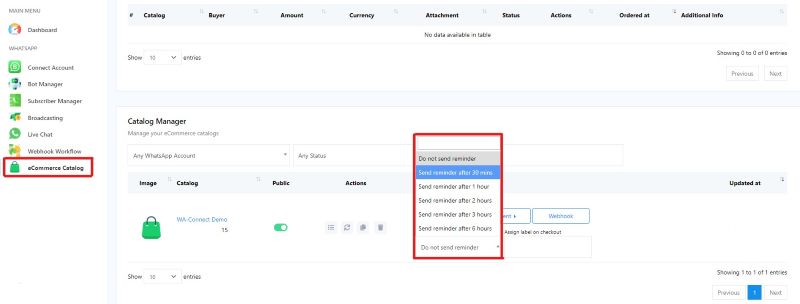
- Set up an abandoned cart reminder message and select the timing.
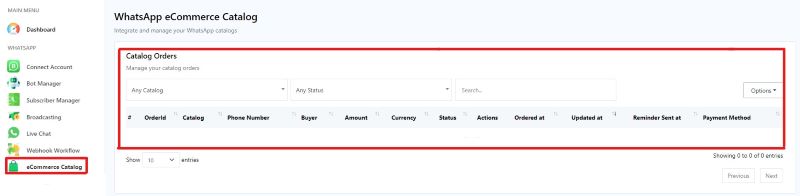
- You can view catalog orders and change the status of an order from the catalog order at the top of the page.