

WhatsApp Message Templates
Message templates are used to send messages to subscribers outside the 24-hour window or manually import contacts. A message template is a pre-approved message for WhatsApp, ensuring compliance with their policies. Templates include order confirmations, shipping updates, and marketing broadcasts.
Message templates enable personalized messages, like order confirmations with user-specific details. They ensure consistent and compliant messaging, enhancing chatbot effectiveness by delivering timely and unblocked messages.
Creating a New Template
- From the left menu select Bot Manager
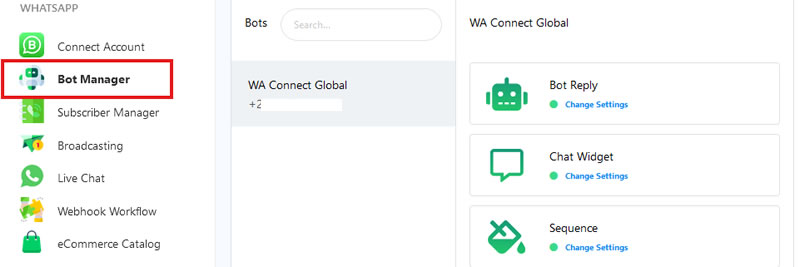
- Click on Message Templates

- Click on Create to create a new template

- Complete all the fields for the template. Below is an explanation of each of the fields
- Template Name: Provide a name in the Template name field. Please note that only lowercase and underscores are allowed. No spaces
- Locale: Choose the language in the Locale section.
- Template Category: Select from Utility, Marketing, and Auth/OTP.
- Header Type: Choose Text, Image, Video, or Documentation.
- Message Body: Compose your message (limit: 1024 words).
- Footer Text: Optionally, add a footer in the Footer Text field.
- Button: Optionally, add a button (Call To Action or Quick Reply).
- Call To Action button can be either a website URL or a phone number
- A Quick Reply button will send the button text back as a reply to the message
- After completing the fields, click Save.
- The template will be listed as Submitted and will require approval.
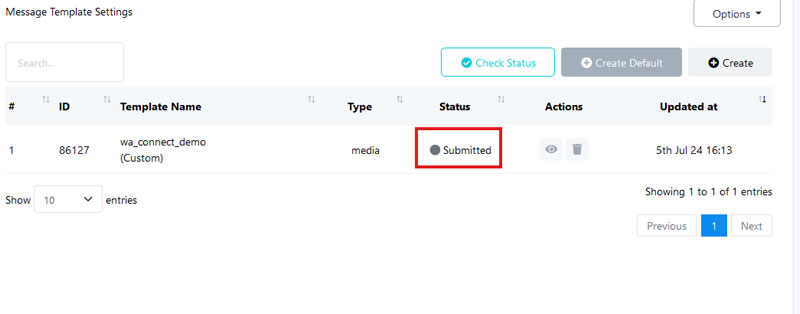
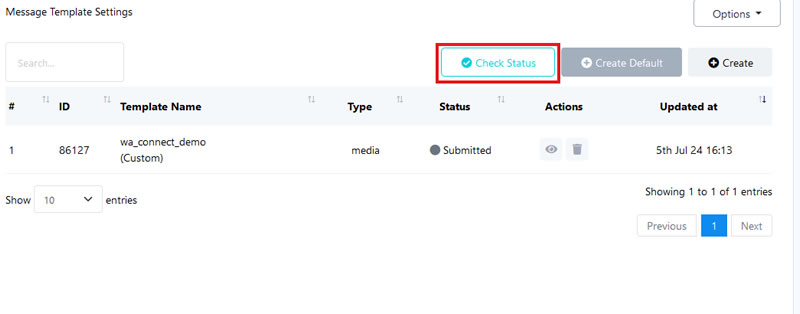
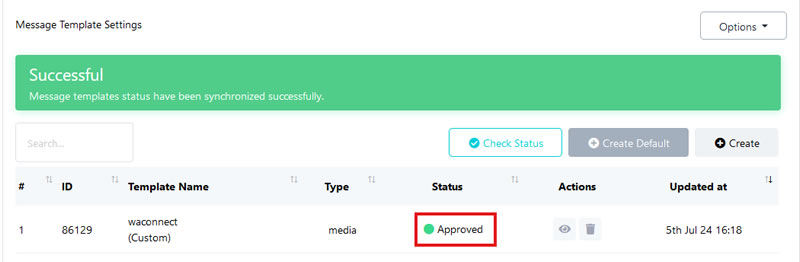
- Use the Check Status button to see the approval status. You can also create default templates (Order Status, COD order verification, abandoned cart recovery, and abandoned cart recovery with coupon) that will also require approval.
- Once the message template status is approved, you can broadcast a message to your database using the approved template.
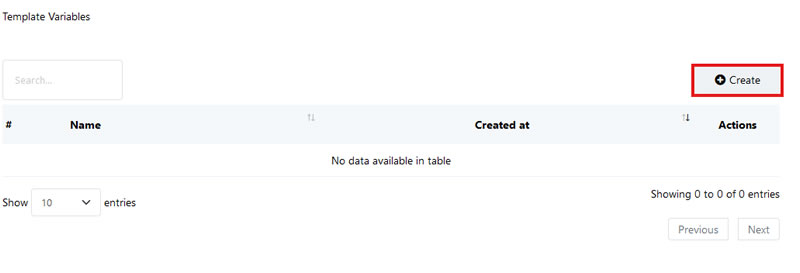
Template Variables
- Towards the bottom of the message template page, you will find Template variables
- Use the Template Variable section to manage or create new variables by clicking the Create button.
- Template variables are used for personalising message templates.